
A Tor Browser window stuck at 50 percent can be frustrating, especially with “secure connection failed,” an error with several possible causes. Changing every setting at once is worse; safe mode is only a last-resort diagnostic, not a substitute for the ordered checks. Turning off protections or installing an unofficial build can create risks that outlast the connection problem.
Small, controlled checks are a safer starting point. You can fix most failures without lowering the browser’s safety level or exposing your device to unnecessary threats.
Tor connection troubleshooting starts with safe checks
A stalled connection often means Tor Browser cannot complete its path to the Tor network. The displayed “secure connection failed” message can have several causes. These include wrong device time, blocked traffic, a damaged installation, or local security software. It is not a reason to weaken your setup.
Start with this order. Make one change, test it, then move on only if the issue remains.
- Close Tor Browser fully, then check that another Tor process isn’t still running. If you’re unsure, restart Tor Browser, or restart the computer before trying again.
- Confirm your regular internet connection works. A captive portal, unstable Wi-Fi connection, or restricted work network can prevent Tor from bootstrapping.
- Check your device date, time, and time zone. Tor relies on an accurate system clock for certificate checks. Even a small clock error can stop a connection.
- Update Tor Browser through official Tor Project channels, and search for torproject org if you need to verify the source. Do not download a “fixed” browser from a forum, file-sharing site, or unknown deep web site.
- Open the browser’s connection settings and leave its proxy settings unchanged unless your network administrator provided a known proxy configuration.
The Tor Project’s official connection troubleshooting guidance recommends checking whether an antivirus program or firewall interferes. It also recommends restarting the system when another Tor instance may still be active. Kaspersky may be one source of interference, but it is not always responsible. If Kaspersky is installed, follow its narrow, product-specific rule or support guidance rather than disabling protection broadly.
Use safe mode only as an authorized operating-system isolation test. Safe mode is not a routine way to repair a blocked Tor connection, and it is not a universal browser feature.
A connection stuck at 50 percent usually points to a network path problem, not a reason to reduce your security settings.
Check the clock, browser files, and local security controls
An incorrect system clock is one of the easiest problems to miss. Open your operating system’s Date and Time settings, enable automatic synchronization, and confirm the correct time zone. Restart Tor Browser after the clock updates.
Next, check the browser itself. An outdated browser version, a moved installation, or an older copied folder can cause unexpected failures. Tor Browser is designed as a self-contained package. Keep it in its original installation folder, and avoid extensions, themes, or custom proxy tools.
An antivirus program can also interfere with an encrypted connection, and Kaspersky behavior varies by product version. Web protection, HTTPS scanning, and endpoint filters may block Tor before it builds a circuit. This does not mean you should leave your protection disabled.
On supported systems, this diagnostic safe mode test can help isolate startup conflicts, but it is temporary. In safe mode, change only the approved security control. Return from safe mode afterward. Do not treat safe mode as a permanent configuration.
Use a short test only if you have permission to change the setting. A Kaspersky test should alter only one approved control at a time:
- Write down the security setting before touching it.
- If Kaspersky separates encrypted-traffic inspection from other protections, disable only that feature.
- Close and reopen Tor Browser, then test one connection attempt.
- Turn the protection back on immediately after the test.
If Tor connects during that test, Kaspersky’s behavior may indicate inspection interference, not a reason to weaken protection. Keep the antivirus active and ask the vendor or network administrator for a narrow Tor Browser rule. Kaspersky support can help identify a product-specific exception. Do not disable the whole firewall as a routine fix. If authorized, request a narrow firewall exception instead. A broad exclusion can expose your files, browser traffic, and other applications.
A “proxy server is refusing connections” warning can indicate an unwanted local proxy. “secure connection failed” displayed text can also point to security software interception. Check your proxy settings before treating a local proxy as deliberate. The Tor Project’s proxy error advice warns that Kaspersky and other antivirus products can interfere. It recommends a clean reinstall in a new folder if simpler fixes fail.
Do not enter ports such as 9050 or 9150 by guesswork. Those ports matter only for a known local Tor service or approved proxy. Confirm that the service uses SOCKS v5 and that the approved proxy supports SOCKS v5. A manually entered proxy server should be verified, not guessed. Random proxy changes can break bridges and add a party you do not trust.
Use Tor bridges when a network blocks direct access
Censorship and filtering can block direct access to the Tor network. This is common on heavily filtered networks, public Wi-Fi systems, schools, and workplaces. Check your network settings first, since a local restriction may explain the failure. A bridge is an unlisted entry point into Tor that can help when a direct connection fails.
Open Tor Browser, go to Settings, then Connection, and review your connection settings. Choose from the bridge options, starting with a built-in bridge before changing anything else.
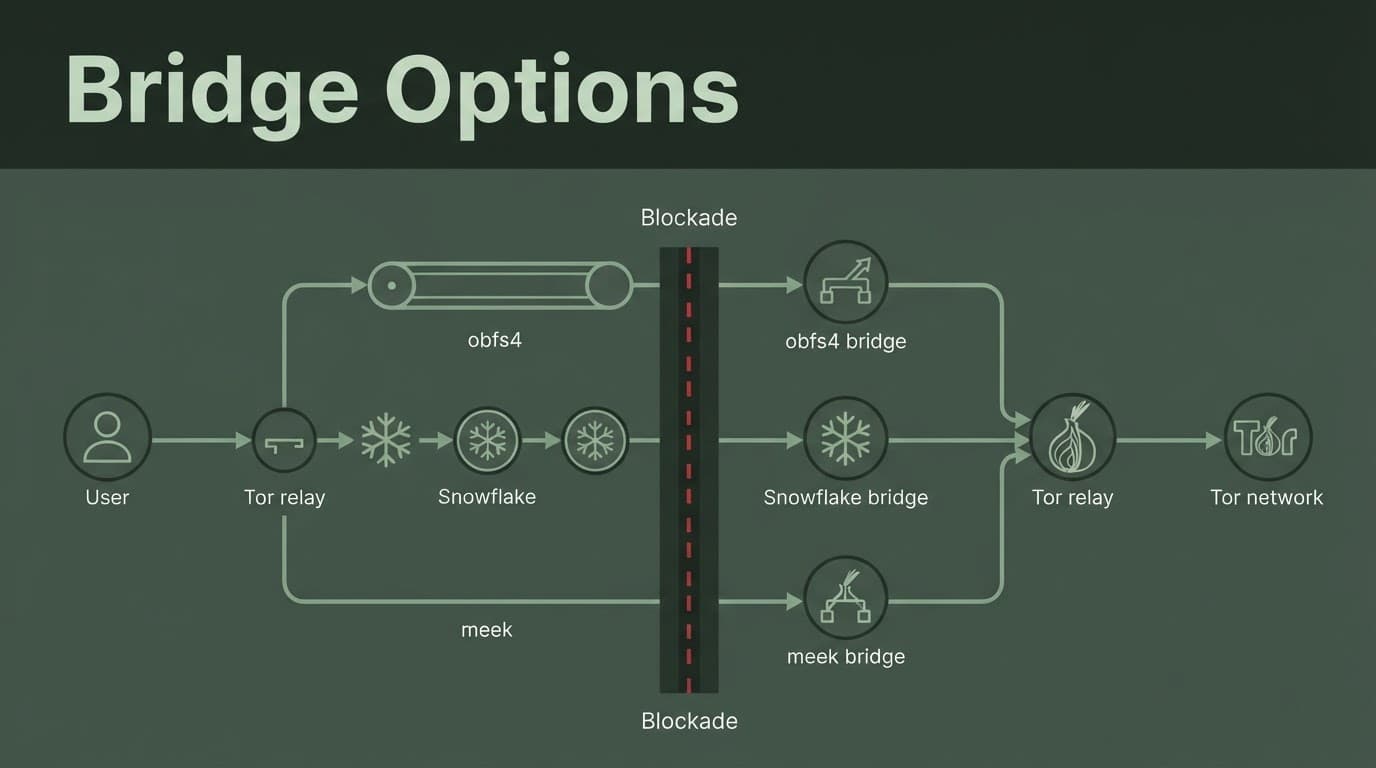
These bridge types have different uses:
| Bridge type | What it does | When to try it |
|---|---|---|
| obfs4 | Disguises Tor traffic to make it harder to identify. | It is usually the first bridge to test. |
| snowflake | Routes traffic through short-lived volunteer proxies. | Try it when obfs4 does not connect. |
| meek | Uses a permitted web service path when available in your Tor Browser version. | It may help on strict networks, but it can be slower. |
Try one bridge type at a time, starting with obfs4, then switch and retest if it fails. Safe mode is only a local diagnostic, not a way around filtering or a replacement for a bridge. Do not combine a bridge with an unnecessary manual proxy. Tor Project support notes that a bridge cannot work if a proxy is set, so check your proxy settings before blaming the bridge itself. Review the current known issues guidance if the browser keeps failing after a bridge change.
Built-in bridges are a good first choice. If your network blocks them, use Tor Browser’s “Request a Bridge” option to obtain another address. Depending on the version, its interface and availability may vary, and the request flow may use bridgeDB. Keep private bridge details private. Posting a bridge line in a public chat can make it easier for blocking systems to find it.
A bridge changes your entry path into Tor, not a destination’s trustworthiness or the privacy limits of the resulting circuit. It does not make a harmful website safe or protect you from phishing.
Follow local laws and network policies. Tor can protect privacy, but it should not be used to bypass rules that put you or others at risk.
Read Tor logs without exposing your details
Tor logs replace guesswork with useful evidence. When Tor Browser displays an error message, it may offer “copy Tor log to clipboard.” If not, open Tor Browser’s menu, choose Settings, select Connection, then open the Tor logs.
Save the copied text in a local plain-text file first. Do not post the entire log on a public forum. It can contain timestamps, bridge details, connection settings, and other operational information that should stay private.
Common patterns can point you in the right direction:
- Time or certificate errors usually mean the system clock or time zone needs correction.
- Proxy errors often point to an unwanted proxy server, antivirus interception, or a local service that is not running.
- Repeated bootstrap or circuit-building failures and timeouts often point to network filtering, so try a bridge or another permitted network.
- Launch and permission errors may mean a firewall blocked the application or the installation is damaged.
An encrypted connection inspection entry can be compared with a relevant Kaspersky event record. That comparison does not prove Kaspersky caused the failure. For further review, contact Kaspersky through an authorized support channel or ask a network administrator.
The Tor Project explains how to access and assess Tor log errors. Share only the smallest redacted section needed if a trusted support channel requests it. Remove bridge addresses, usernames, folder paths, IP addresses, timestamps, and personal details first.
If an authorized technician requests a safe mode comparison, label that test clearly and keep its resulting logs private. A safe mode log is not automatically safer to share.
Businesses dealing with suspected device tampering or wider network filtering should keep any investigation documented and authorized. Share logs only through an approved support or assessment process.
Keep onion research safe after Tor connects
A successful connection in Tor Browser does not prove that an onion service is trustworthy. Verified onion links are a starting point, but check each address against the project’s official clearnet website, signed announcement, or known public channel.
For research and education, Verified Tor Onion Links can help you find Tor website information. Treat every directory listing as a lead, then verify it again before entering passwords, downloading files, or sharing personal details.
Names such as Tor Taxi or Tor Watch may appear in copied lists, screenshots, or search results. They are not proof that a directory is current or authentic, since onion addresses change and phishing pages copy trusted designs.
Many verified Tor websites publish their onion address on their regular website, which is safer than trusting a reposted link. Deep web sites aren’t automatically dangerous, but deep web marketplaces carry major fraud, malware, and legal risks. Don’t reuse passwords, upload identity documents, or run files downloaded from unknown services.
Frequently Asked Questions
Why is Tor Browser stuck at 50 percent?
A connection stuck at 50 percent often means Tor cannot complete its path to the network. Check your internet connection, system clock, proxy settings, and local security software before trying a bridge.
Should I disable Kaspersky or another antivirus program?
No, do not disable protection broadly. If you have permission, test only the specific encrypted-traffic inspection feature, restore it immediately, and request a narrow Tor Browser rule if it is causing interference.
When should I use a Tor bridge?
Use a bridge when your network blocks direct access to the Tor network, especially on filtered public, school, or workplace networks. Try a built-in obfs4 bridge first, then test snowflake or meek if needed.
Is safe mode a reliable way to fix Tor connection problems?
Safe mode is only a temporary, authorized diagnostic for isolating startup or security conflicts. It is not a routine repair method or a permanent browser configuration.
Final thoughts
Tor Browser failures usually stem from clock problems, outdated or damaged files, security conflicts, unwanted proxies, or blocked traffic. Work through each possibility in order instead of changing several settings at once.
The safest fix preserves Tor’s privacy protections; safe mode is only an authorized, temporary diagnostic, not a permanent workaround. Keep the browser updated, use bridges when direct access is blocked, protect your logs, and treat every onion address with healthy caution.